# Initiate Usage (Cryostat/Microtome/NMR)
# Initiate Usage
If an instrument does not have a computer to log into, or has a Linux operating system, you will need to initiate tracking manually. There are two ways to do this - via computer or the bookitlab app. The instructions are essentially the same, but below are screenshots to guide you through each.
The app is the preferred method.
**Via the app**:
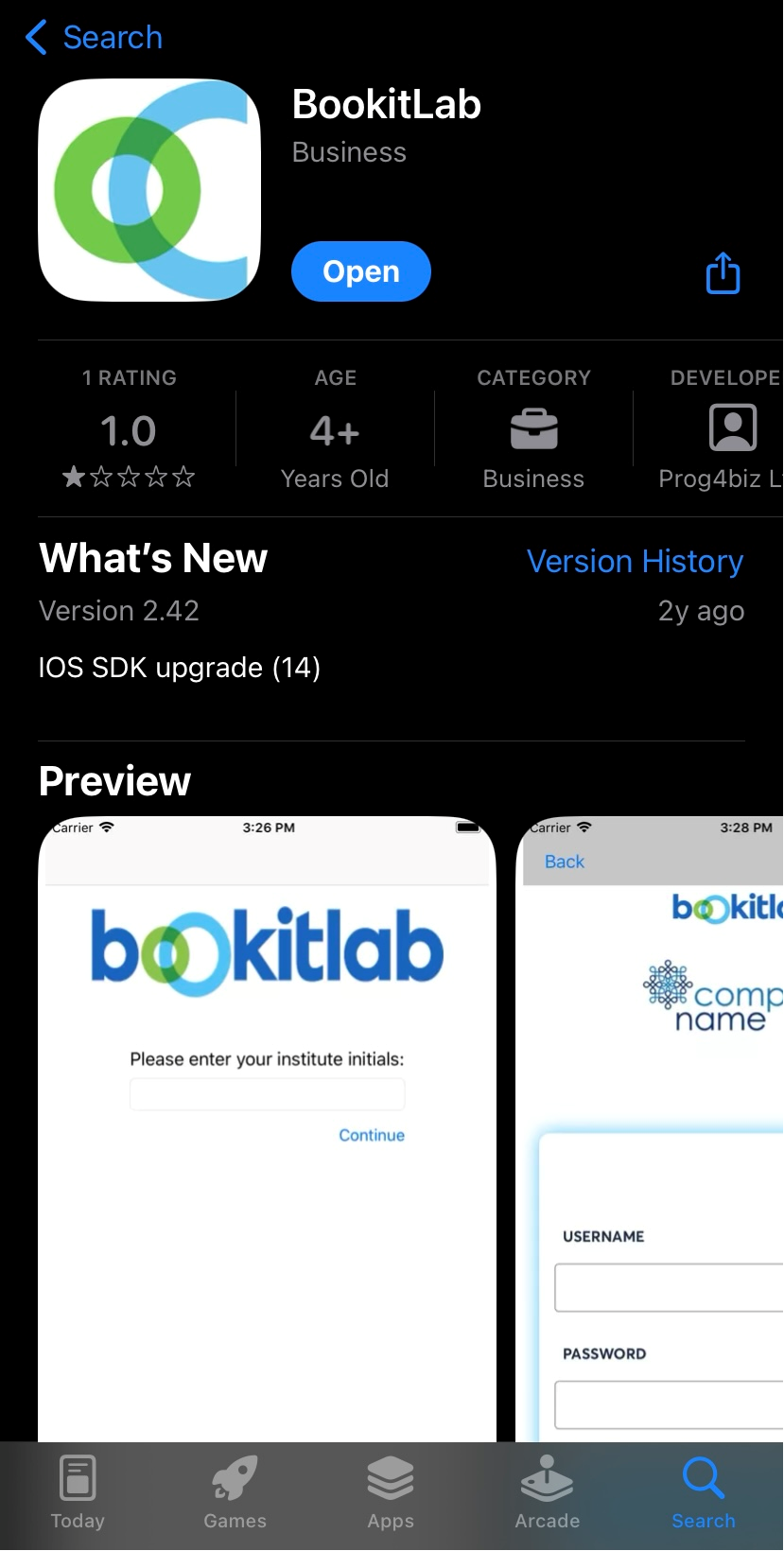
Download BookitLab from the AppStore. When launched, if asked to enter your institute initials, type IGB. Log in via SSO.
[](https://www-app.igb.illinois.edu/core-docs/uploads/images/gallery/2024-06/image-1717519835685.png)
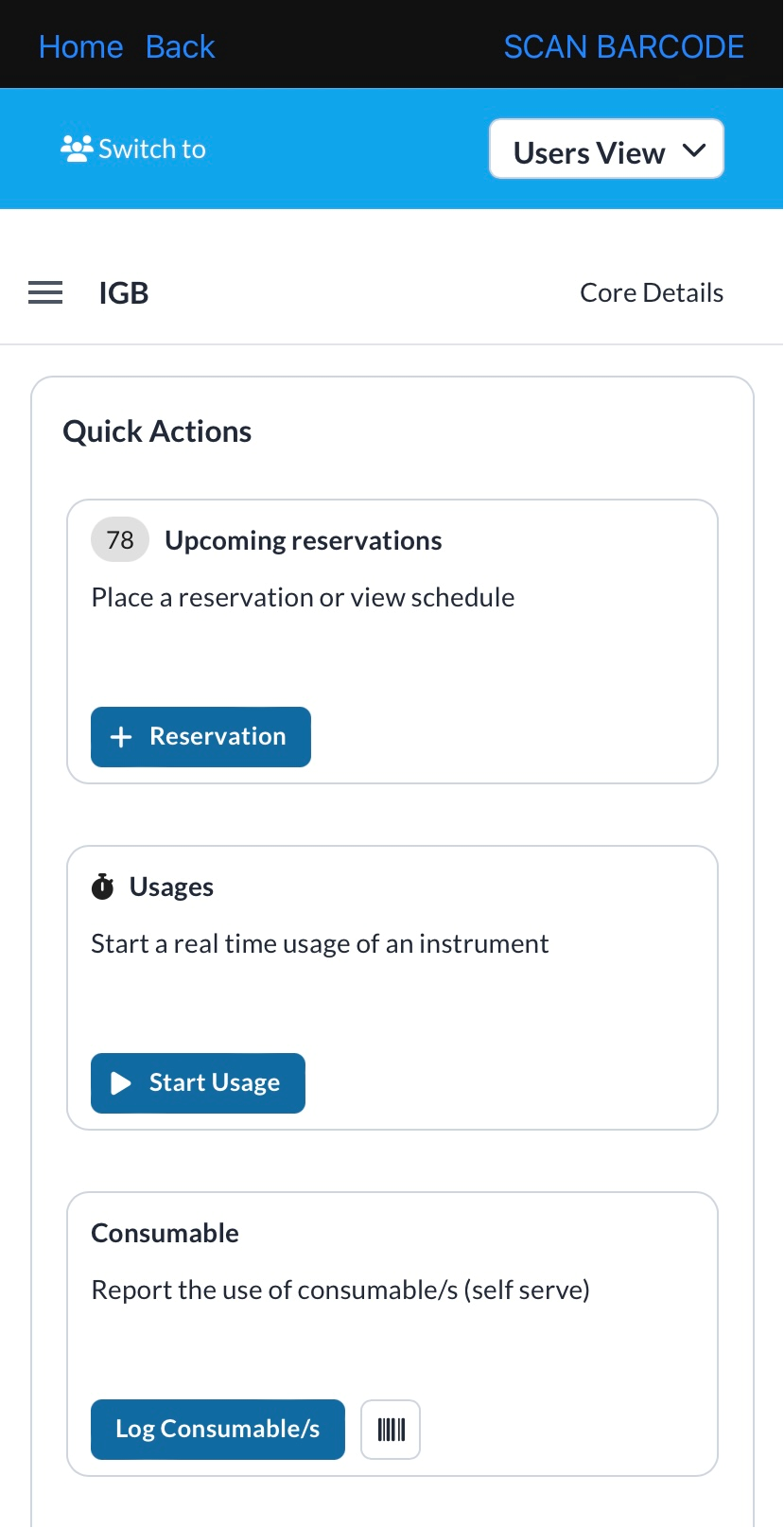
On the main dashboard, you should see the Usages Widget. Click "Start Usage".
[](https://www-app.igb.illinois.edu/core-docs/uploads/images/gallery/2024-06/image-1717520089157.png)
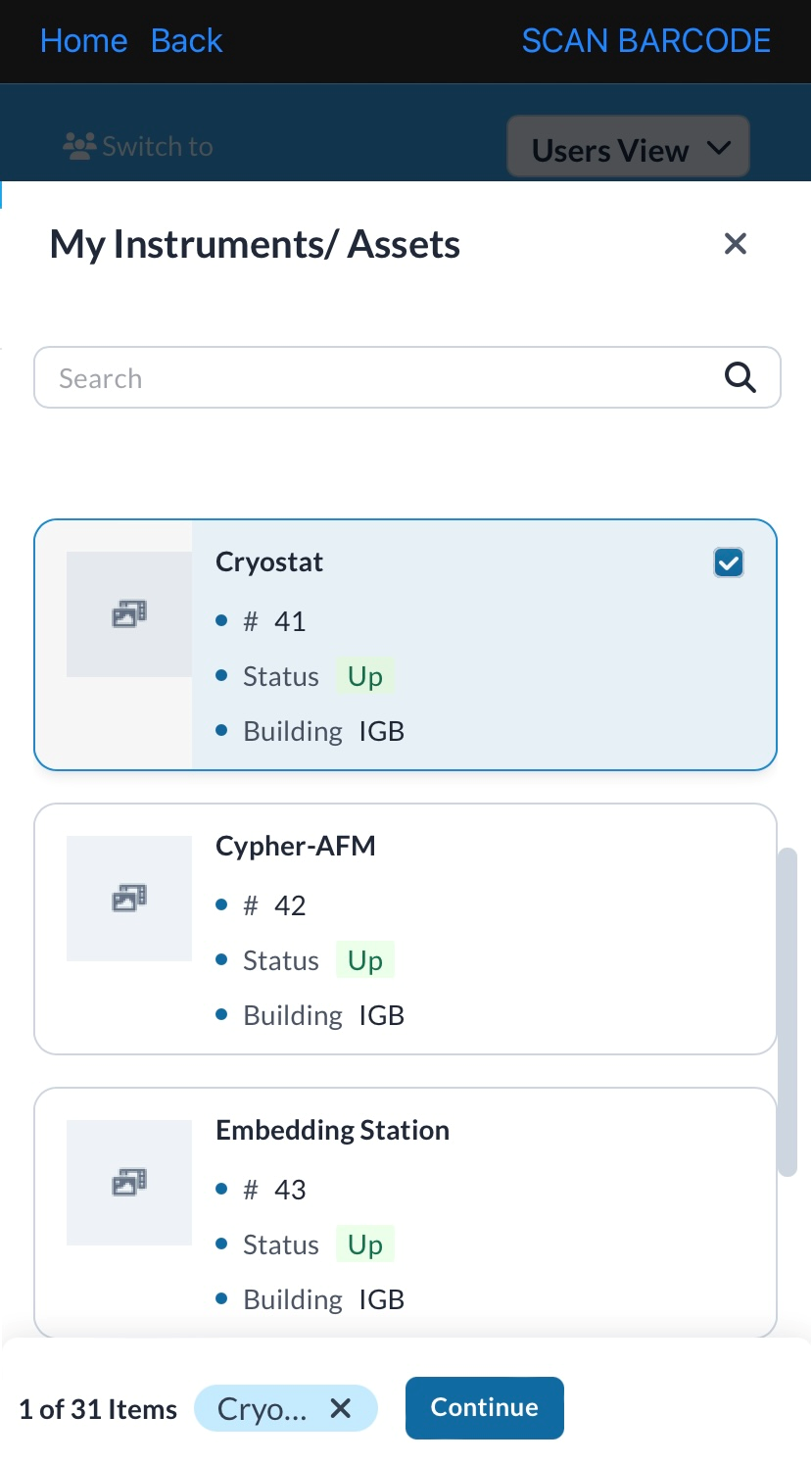
Choose the equipment that you have already reserved. In this example, we are choosing the cryostat. Click continue.
[](https://www-app.igb.illinois.edu/core-docs/uploads/images/gallery/2024-06/image-1717520163053.png)
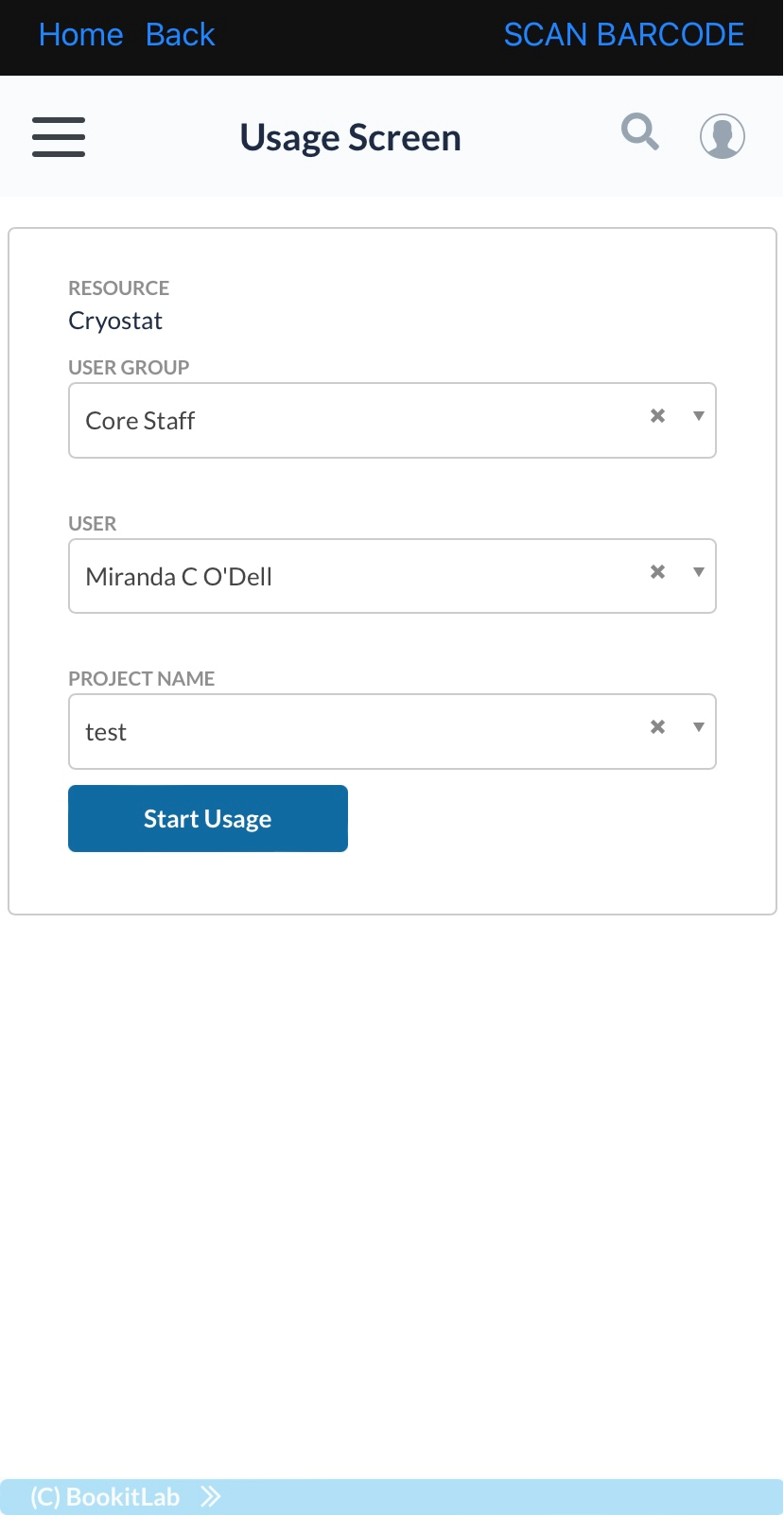
On the Usage Screen, your user group and user name should be accurate. Under projects, choose the CFOP that the usage will bill to. Click "Start Usage".
[](https://www-app.igb.illinois.edu/core-docs/uploads/images/gallery/2024-06/image-1717520291649.png)
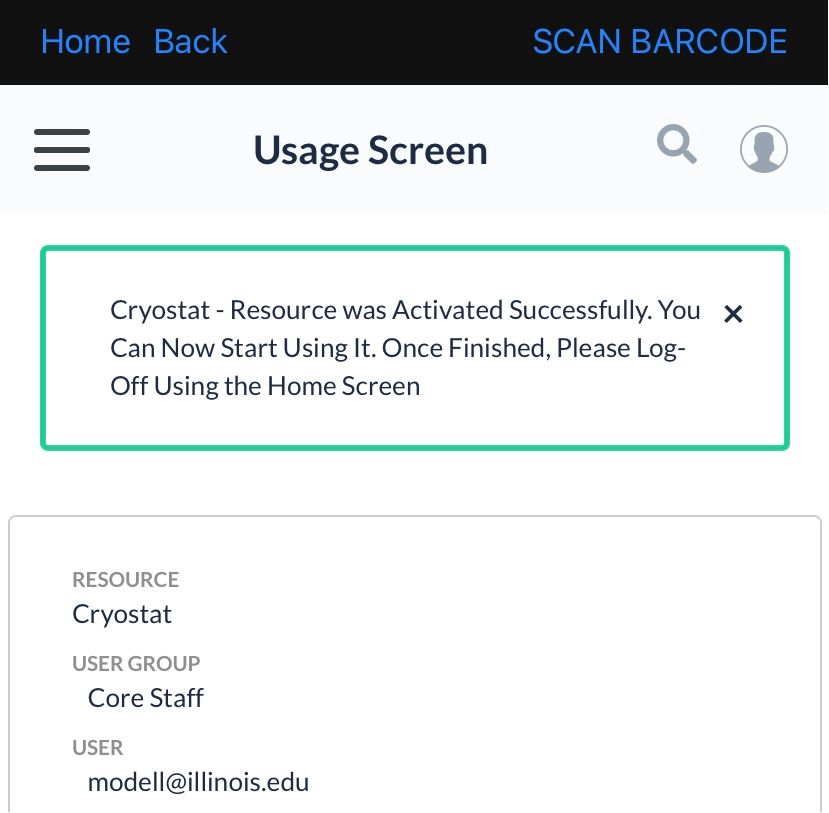
You will receive a confirmation screen to let you know this was successful, and also indicating how to stop your usage.
[](https://www-app.igb.illinois.edu/core-docs/uploads/images/gallery/2024-06/image-1717520382356.png)
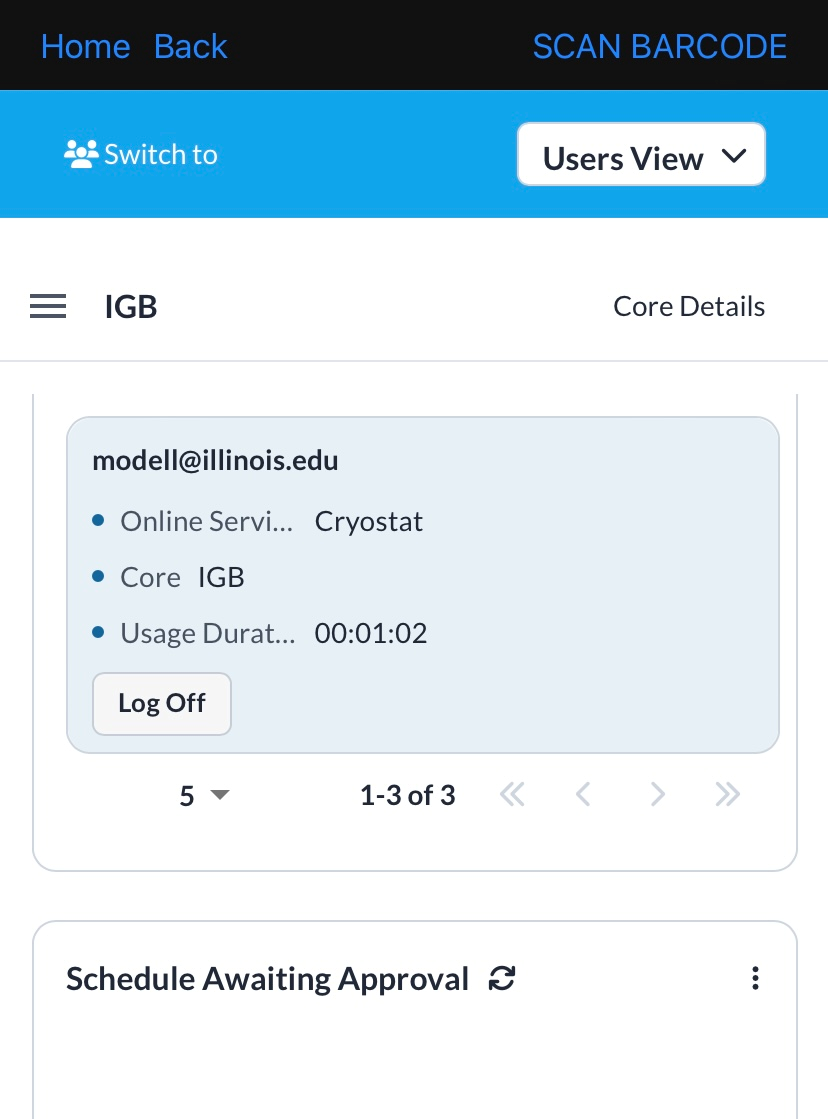
To end your usage, go back to the main dashboard and scroll down toward your active usage widget. Click "Log off".
[](https://www-app.igb.illinois.edu/core-docs/uploads/images/gallery/2024-06/image-1717520490769.png)
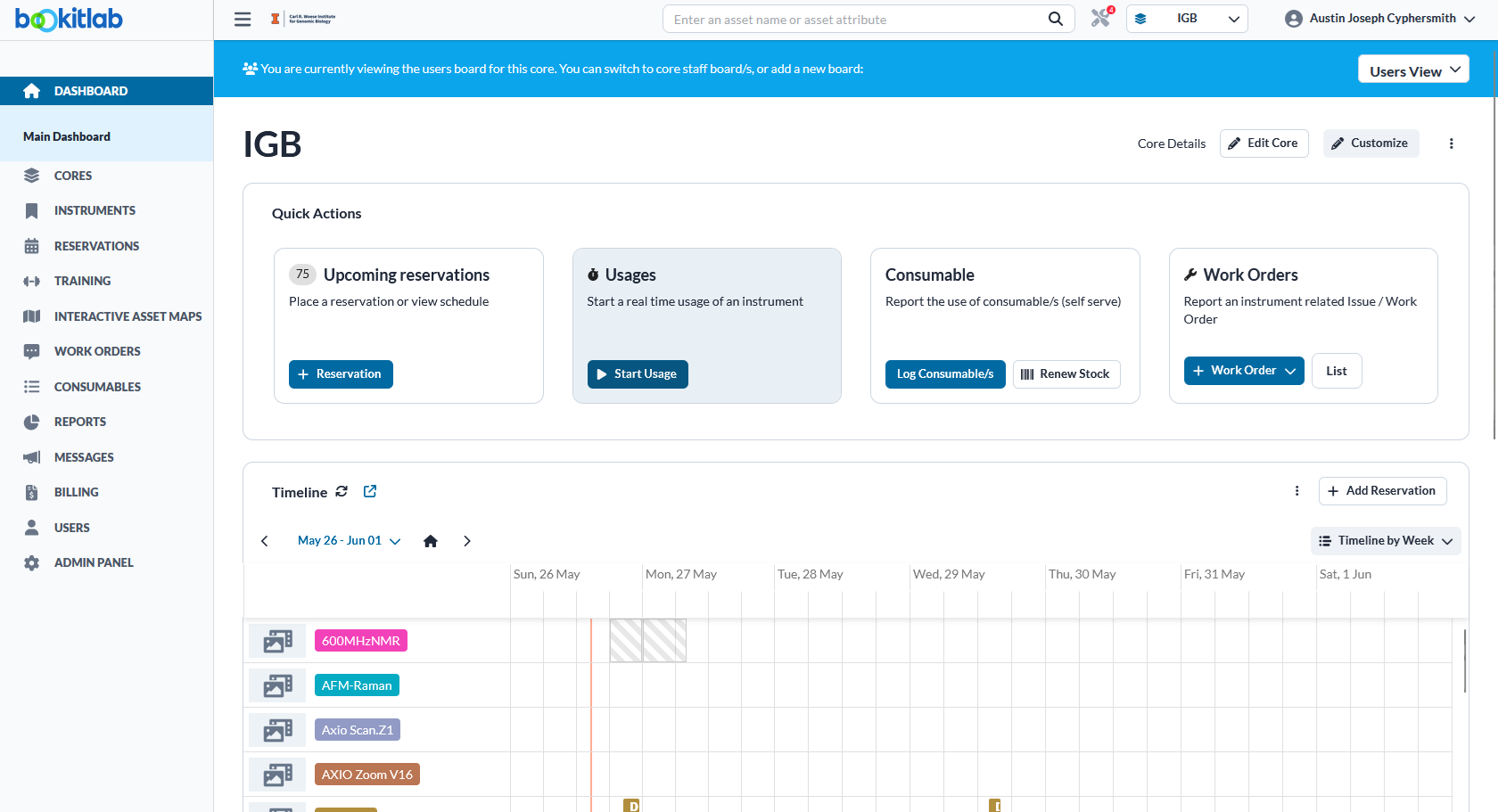
**Via computer**: You can start this by going to the Usages Widget on the Main Dashboard. Choose Start Usage.
[](https://www-app.igb.illinois.edu/core-docs/uploads/images/gallery/2024-05/image-1716756928122.png)
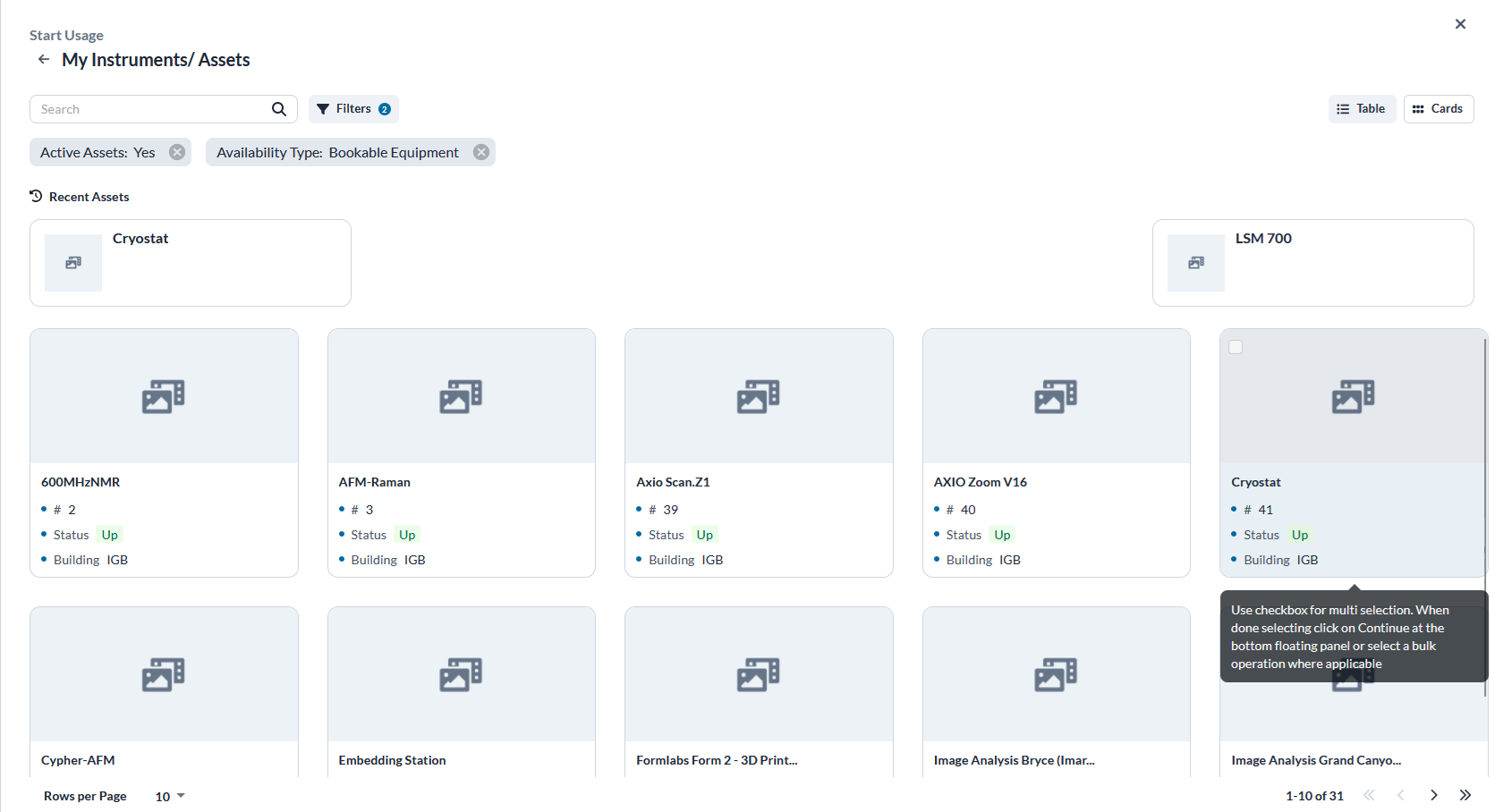
Choose the relevant instrument by scrolling or searching for the name. Select the instrument.
[](https://www-app.igb.illinois.edu/core-docs/uploads/images/gallery/2024-05/image-1716756935016.png)
Choose the User Group (PI), User, and Project Name (CFOP). Click on Start Usage.
[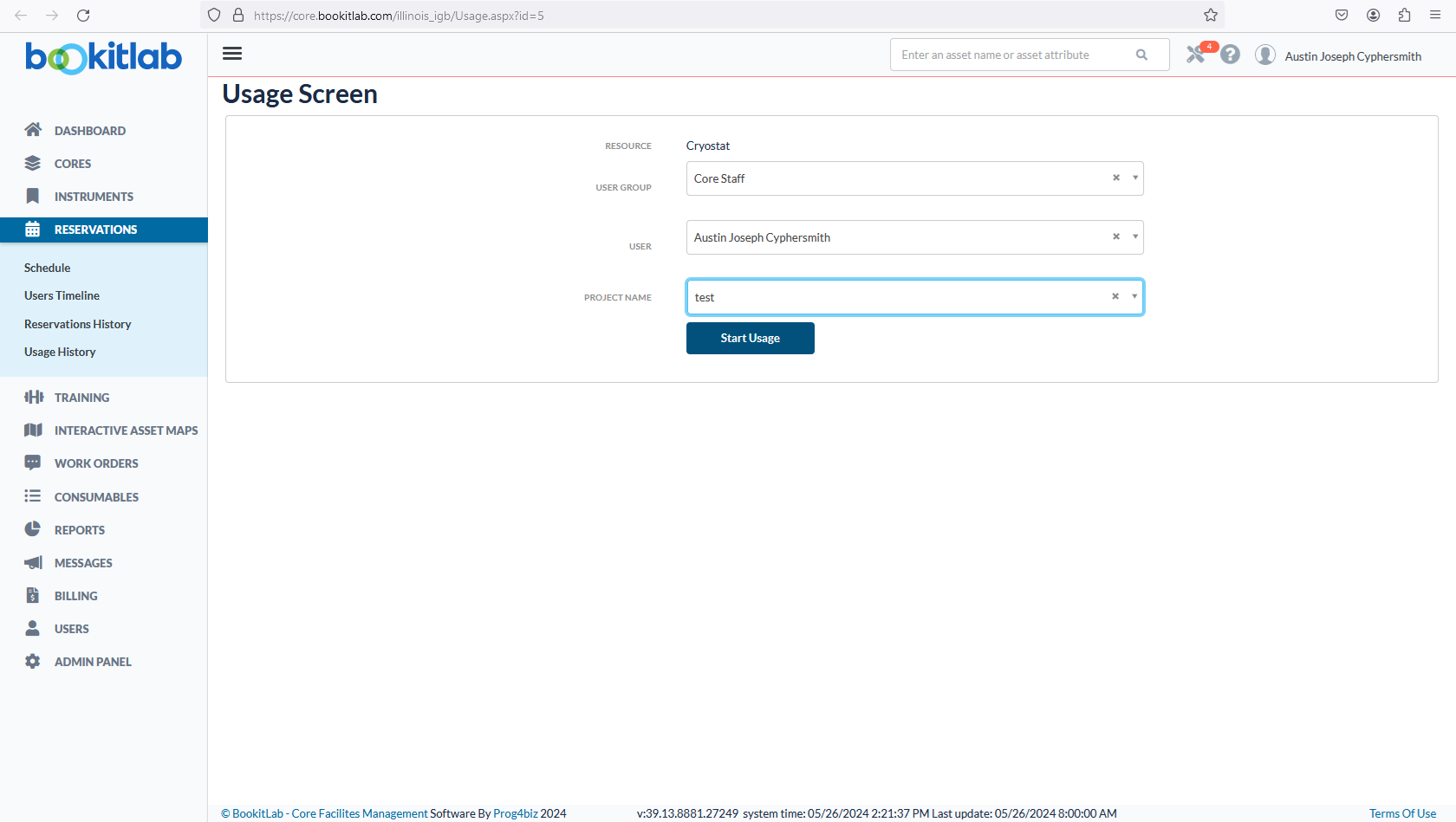](https://www-app.igb.illinois.edu/core-docs/uploads/images/gallery/2024-05/image-1716756941774.png)
A confirmation screen will let you know this was successful.
[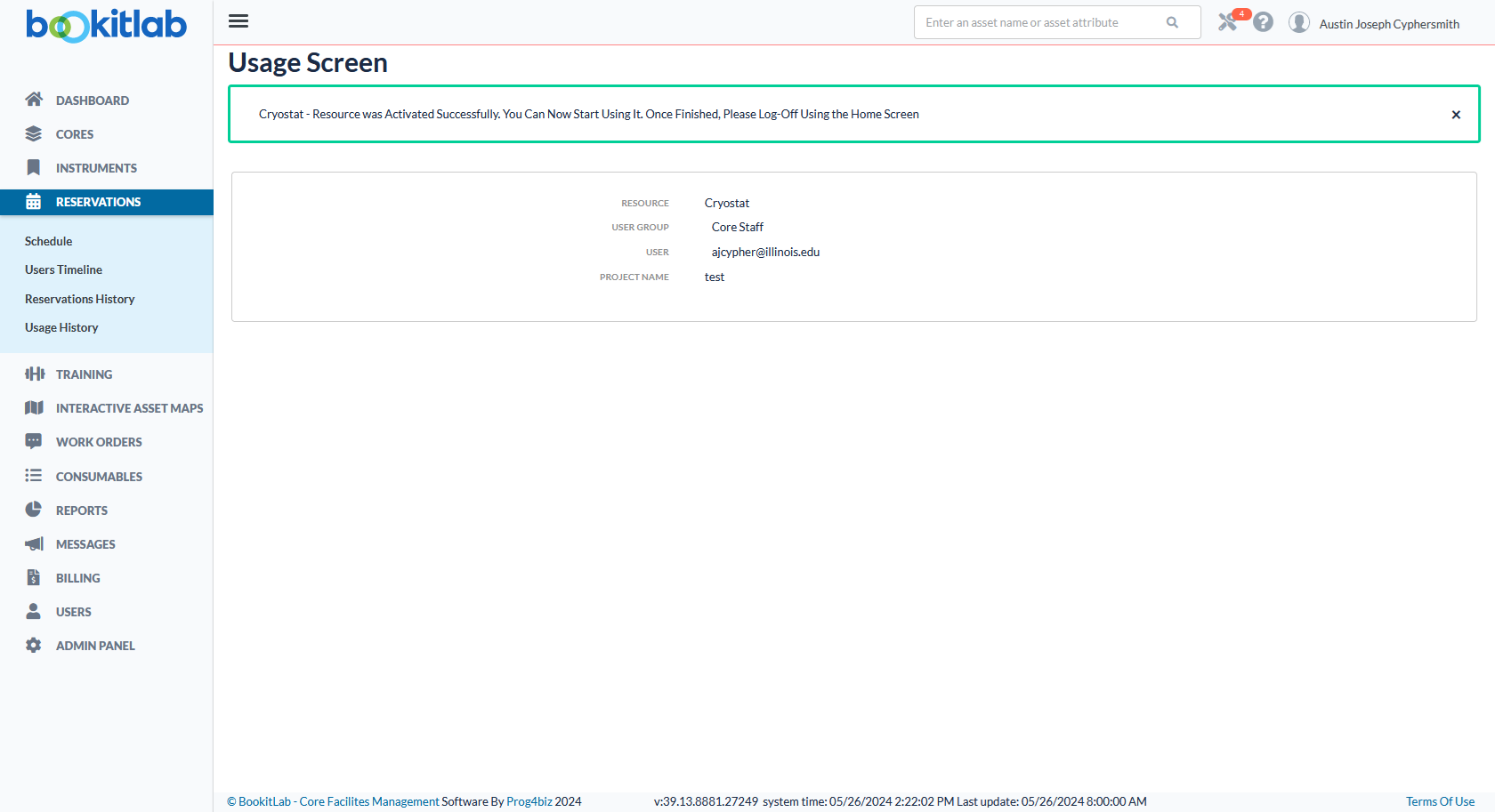](https://www-app.igb.illinois.edu/core-docs/uploads/images/gallery/2024-05/image-1716756946955.png)
To end usage, go back to the Main Dashboard and scroll down to the "Currently Active Usages" item. Choose Log Off.
[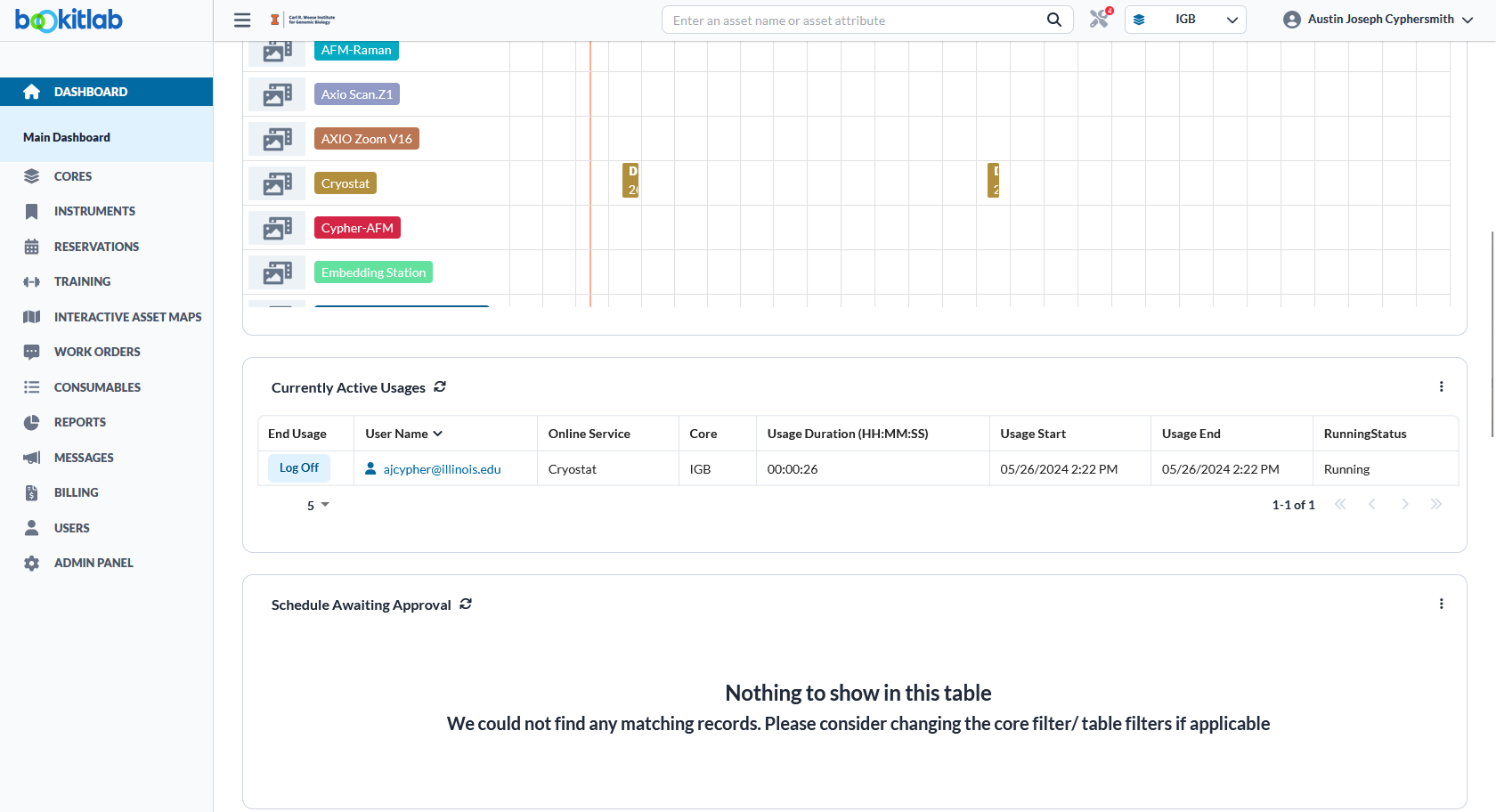](https://www-app.igb.illinois.edu/core-docs/uploads/images/gallery/2024-05/image-1716756951817.png)